> For the complete documentation index, see [llms.txt](https://docs.chirpwireless.io/llms.txt). Markdown versions of documentation pages are available by appending `.md` to page URLs; this page is available as [Markdown](https://docs.chirpwireless.io/connectors/tracker-connector.md).
# Tracker Connector
Connect a cellular GPS vehicle tracker to Chirp — OBD2, CAN bus, and standalone trackers, 2,000+ preconfigured models.
Chirp goes beyond the walls of your home. The **Tracker connector** lets you bring a **vehicle GPS tracker** into Chirp, so your car, motorcycle, or camper shows up on the same dashboards and alerts as your sensors — live location, route history, speed, and whatever else the tracker reports.
## What it's for
The Tracker connector is for **cellular (GSM) vehicle trackers** — devices that send their location over the mobile network:
* **OBD2** plug-in trackers (into a car's diagnostics port)
* **CAN bus** trackers wired into the vehicle
* **Standalone GPS** vehicle trackers
Chirp ships with preconfigured profiles for **over 2,000 tracker models**, so most popular trackers work out of the box.
These trackers almost always need an external power source or a vehicle connection (OBD2/CAN), which makes them a great fit for **cars, motorcycles, campers, trailers with a battery, boats, ATVs**, and similar — not for tiny battery-only room sensors.
> **Cellular trackers only — not LoRaWAN.** Some GPS trackers and tags use LoRaWAN instead of a mobile network. Those do **not** go through the Tracker connector — a LoRaWAN tracker connects through the [LNS Connector](/connectors/lns-connector.md), just like your other LoRaWAN sensors. Use the Tracker connector for cellular/GSM vehicle trackers.
## Adding the Tracker connector
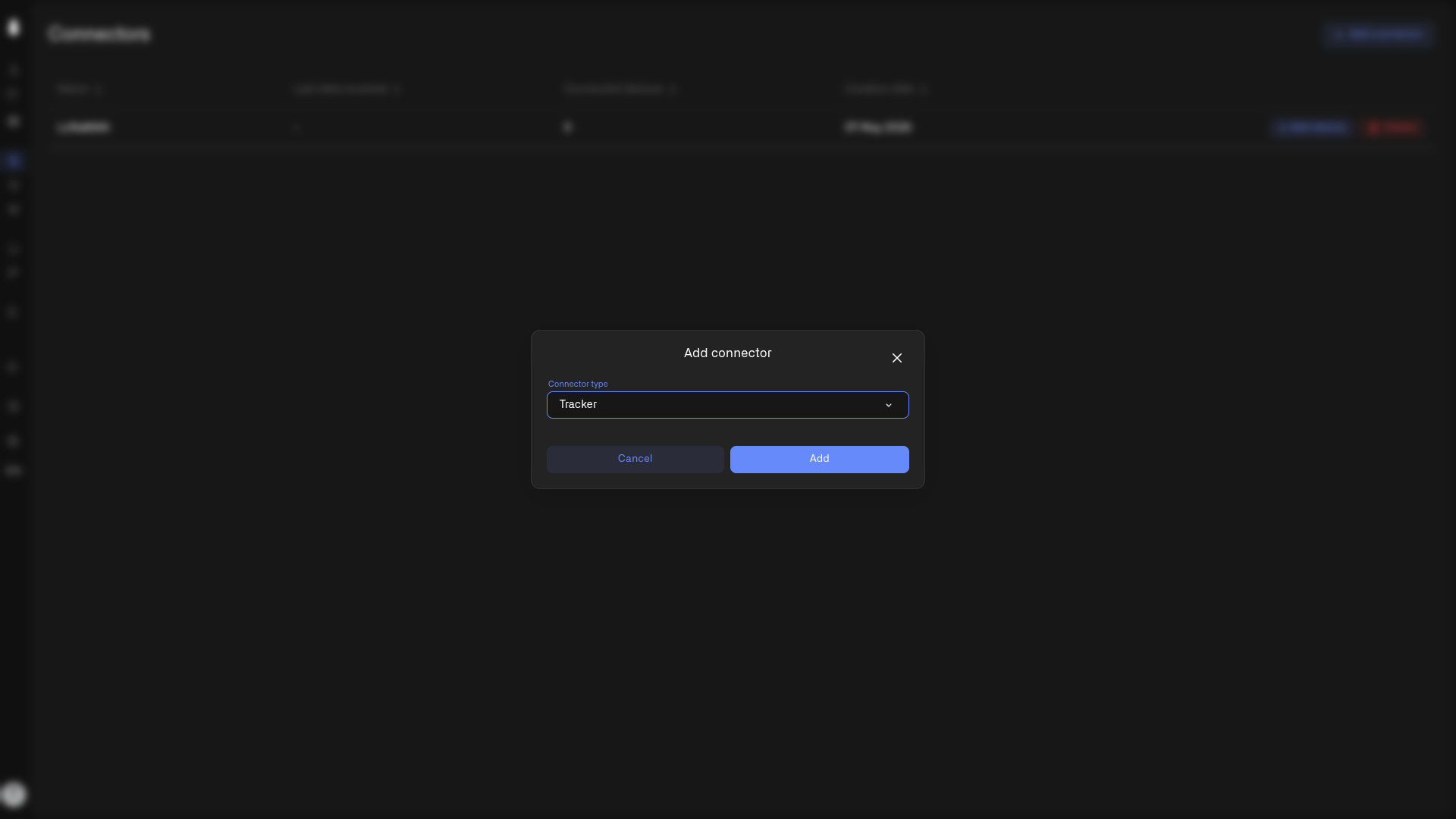
1. Click **Connectors** in the sidebar.
2. Click **Add connector**.
3. Choose **Tracker** from the **Connector type** dropdown.
4. Click **Add**.
That's it — the connector is created in one step. Each home can have **one Tracker connector**. (See [Setting Up a Connection](/connectors/setting-up-a-connection.md) for the connection basics.)
## Connecting your tracker
When you register a tracker through this connector, its **Connection** details include three tracker-specific fields:
* **Unique ID** — your tracker's identifier
* **Device model** — pick your tracker from the model list
* **Url for GPS tracker** — the endpoint Chirp gives you; configure your tracker (in its own app or SMS settings) to send data to this URL
Configure the tracker to send its data to that URL; once it starts reporting, it appears in Chirp. For the full registration walkthrough, see [Adding Sensors](/devices/adding-sensors.md).
## Seeing where it's been
With a tracker connected, the dashboard side comes alive: put it on a map, watch it live, and replay where it has been. See [Tracking What Matters](/dashboards/tracking-what-matters.md).
---
# Agent Instructions
This documentation is published with GitBook. GitBook is the documentation platform designed so that both humans and AI agents can read, navigate, and reason over technical content effectively. Learn more at gitbook.com.
## Querying This Documentation
If you need additional information that is not directly available in this page, you can query the documentation dynamically by asking a question.
Perform an HTTP GET request on the current page URL with the `ask` query parameter, and the optional `goal` query parameter:
```
GET https://docs.chirpwireless.io/connectors/tracker-connector.md?ask=&goal=
```
`ask` is the immediate question: it should be specific, self-contained, and written in natural language.
`goal` is optional and describes the broader end goal you are ultimately trying to accomplish on behalf of the user. GitBook uses it to tailor the answer towards what is most useful for that goal.
The response will contain a direct answer to the question and relevant excerpts and sources from the documentation.
Use this mechanism when the answer is not explicitly present in the current page, you need clarification or additional context, or you want to retrieve related documentation sections.