> For the complete documentation index, see [llms.txt](https://docs.chirpwireless.io/llms.txt). Markdown versions of documentation pages are available by appending `.md` to page URLs; this page is available as [Markdown](https://docs.chirpwireless.io/lens/cloud-archive.md).
# Back Up Recordings to the Cloud
Send a copy of your home camera recordings to your own Amazon S3, Google Cloud, or Walrus account and watch them again from Chirp.
Imagine the computer running Twin sits in a hallway cupboard, and someone walks off with it, or its disk simply gives up. The clip you wanted goes with it. Cloud backup puts a second copy of each recording in an account you own, so the evidence survives the hardware.
It adds to local recording and never replaces it unless you choose to. Twin saves each clip at home first, then uploads a copy to the cloud account you pick.
## Who benefits most from cloud backup?
* **Holiday homes and rental units** you only visit now and then, where you want to review footage from afar.
* **Homes where Twin runs on a spare laptop or mini PC.** A copy elsewhere means that machine is no longer your only safe place.
* **People who want ownership.** The cloud account, the bill, and the retention choices are yours.
## What happens to a clip on its way to the cloud?
```mermaid
flowchart LR
A[Camera] --> B[Twin saves the clip at home]
B -->|encrypted by Twin| C[Your cloud account]
D[Recordings in Chirp Lens] -->|play, download, delete| C
```
1. Twin records a clip, following your [local recording](https://docs.chirpwireless.io/lens/local-recordings.md) settings.
2. Twin encrypts the clip before it leaves your network, so nothing travels or sits in the account unencrypted.
3. The upload goes straight from Twin to your account without passing through Chirp's servers. Chirp then verifies that the clip arrived whole.
4. The clip appears on the **Recordings** screen, and Chirp can play it back.
Thumbnails, screenshots, and exports that Lens builds from a clip stay with Chirp, not in your bucket.
## Is a backed-up clip private?
The plain answer is on the connector form itself: **Your storage keeps the recordings; the platform keeps the keys and previews and can read the archive.** The files are encrypted in transit and at rest, and Chirp holds the keys because it must decrypt a clip to show it to you. That keeps clips away from outsiders, but it is not end-to-end encryption and it does not hide footage from the platform. Rotating a key protects clips recorded afterward, not older ones.
## How do I switch on cloud backup?
Your camera's Twin must run version **1.1.0** or later; an older Twin keeps recording locally and says it cannot upload. [Installing Twin](https://docs.chirpwireless.io/lens/installing-twin.md) covers updating. You also need **Edit** access to cameras, since the Recordings, Cameras, Videowalls, and Storage screens all require it, and a View-only role is turned away.
1. In Lens, open **Storage** at the bottom of the sidebar.
2. Select **Add storage connector** and complete the form for your provider. [Storage Connectors](https://docs.chirpwireless.io/lens/storage-connectors.md) explains every field.
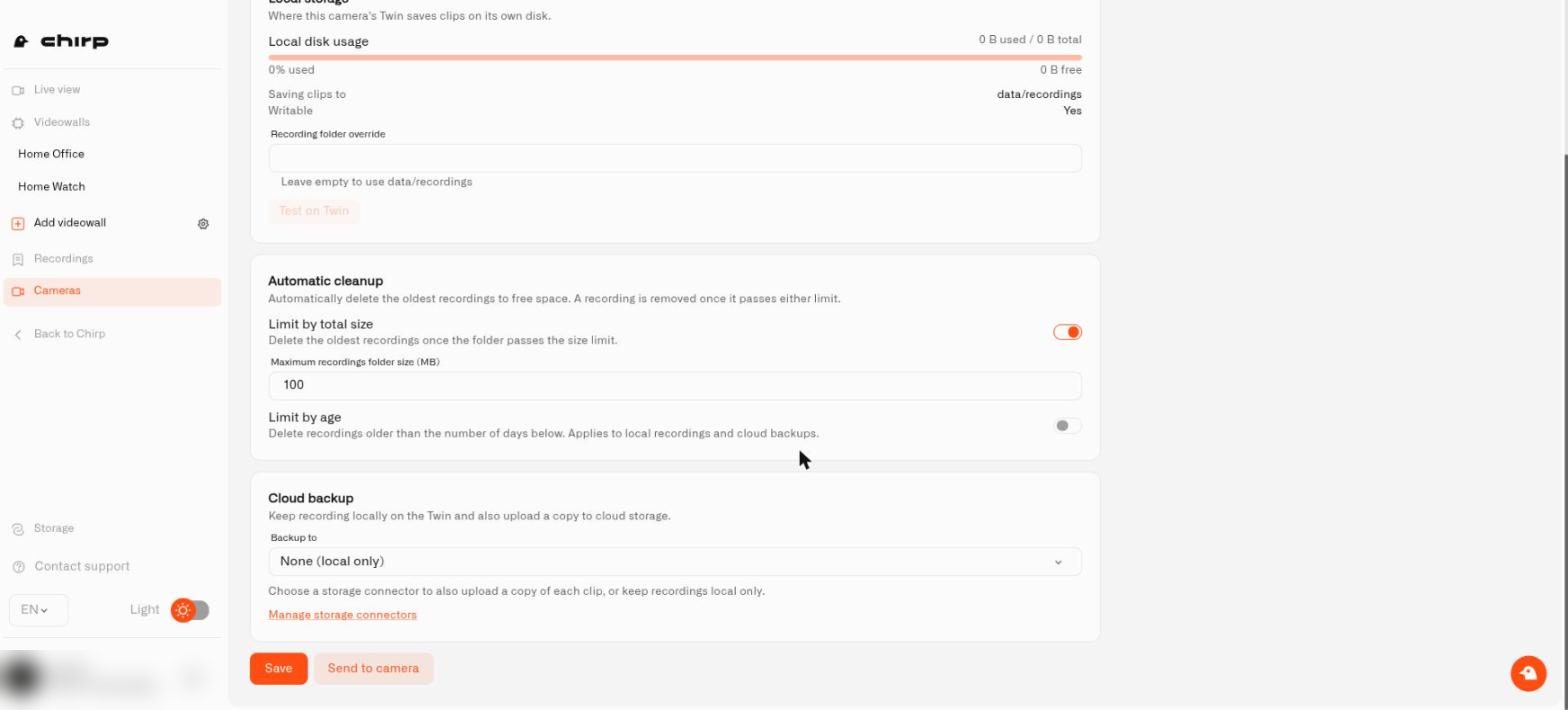
3. Go to **Cameras**, open your camera, and select the **Storage** tab. Scroll to the **Cloud backup** card, whose subtitle says the Twin keeps recording locally and also uploads a copy.
4. Open the **Backup to** list and choose your connector. The first entry, **None (local only)**, turns the feature off. If the list is empty, the card says no connectors are configured and offers **Manage storage connectors**.
5. Once a connector is selected, more controls appear:
* **Upload queue folder**: an advanced path for clips waiting to upload; leave it empty for the default.
* **Delete local clips after upload**: removes the home copy after Lens confirms the upload. Leave it off to keep a permanent local backup too.
* **Limit cloud storage**: when on, a **Maximum cloud storage (MB)** field appears, and the oldest cloud backups are deleted once the camera passes that size. Local clips are unaffected.
6. Select **Save** at the bottom. Saving stores the settings in Lens and sends them to the camera's Twin, and a message confirms "Storage settings saved and sent to the camera." If Twin is offline the message says the settings were saved in Lens but sending failed; select **Send to camera** next to **Save** to push them again once Twin is back. The **Send to camera** button is grayed out while Twin's settings are still loading or cannot be checked.
7. Trigger some motion and watch for the new clip in **Recordings**.
Higher up the same tab, **Automatic cleanup** has **Limit by total size** and **Limit by age**. The age limit, **Maximum recording age (days)**, applies to cloud backups as well as local clips, and the card shows "Kept for at least N days", so a short limit will also remove cloud copies.
The Cloud backup card on a camera's Storage tab.
## How do I find, save, or delete a clip?
Choose **Recordings** in the Lens sidebar. The toolbar has an **All devices** drop-down, a **Date range** button, an **Alerts only** switch that hides clips without alerts, a sort drop-down (**Newest first** or **Oldest first**), and the buttons **Export**, **Clear filters**, and **Refresh**. Use **Refresh** to pull in new clips. Each clip card has a checkbox; tick several and select **Export** to prepare them together.
The Recordings page.
* **Open** a clip to reach its detail page: a breadcrumb back to **Recordings**, the player with **Play** and **Pause**, and a **Media info** panel with **Camera**, **Duration**, **Format**, and **Size**. **Show live** switches the player to the camera's current picture so you can compare, and **Show playback** switches back. Below the player, a **Screenshots** card holds stills taken from the clip: select **Capture** to save the current frame, and until you do it says "No screenshots captured yet." On the Recordings grid, a clip that has alerts carries an **Alerts** badge, which is what the **Alerts only** switch filters on.
* **Play** a clip in Chirp's player. If your storage cannot serve partial reads, a notice says seeking is unavailable; with Walrus, pick an aggregator that supports range requests.
* **Download** it to your phone or computer; the button shows "Downloading the recording…" with **Cancel download**, and if the browser asks you to choose where to save the file, an expired prompt says to select **Download** again. Browsers without the File System Access API, such as Firefox and Safari, cap downloads at 1 GiB and show "This file is larger than 1 GiB. Download it in Chrome or Edge." for bigger files. **Export** asks "Export this recording as a ZIP package?" (or "Export N recordings as a ZIP package?"), shows "Preparing your download package…", and then "Your export package is ready." with a **Download package** button.
* **Delete recording** appears for Amazon S3 and Google Cloud Storage and removes the file from your bucket permanently.
* **Remove from archive** appears for Walrus clips, for clips whose storage period has ended, and for clips whose key was erased. The clip leaves your list, but the file remains in your storage until its paid period ends or you delete it there yourself.
## What do the clip states mean?
A clip that is still only on the camera shows **Kept on the camera**; hover it for the reason, for example the camera needs an update to use cloud backup, it used a key the storage does not recognize or a compromised key, the storage was disconnected, or the storage did not accept the upload. If the player says "Playback unavailable. Storage connector could not provide a stream reference.", the connector cannot be reached; check it on the **Storage** page.
* **Unreadable:** the clip was damaged during upload and cannot be played. It still takes up space in your storage.
* **Storage period ended:** Walrus kept the clip for the period you paid for, and it is no longer available.
* **Archive disconnected — key erased:** you disconnected the storage, so Chirp can no longer decrypt its clips.
## How do I stop using a storage account?
On the **Storage** screen, choose **Disconnect storage** for that connector and type its name to confirm. Chirp permanently erases its keys. Your files stay in the account, but Chirp can no longer open them. A separate action marks a key as compromised and issues a fresh one for future clips.
## Which provider should I choose?
| Your situation | Choose |
| ------------------------------------------------------------------------------ | -------------------------------------------------------------------------------------------------------------- |
| You already have a cloud provider, or a service that follows the S3 convention | **Amazon S3** |
| You have Google Cloud with a bucket | **Google Cloud Storage**, which is newly released: record one short clip and play it back before relying on it |
| You like paying for a fixed storage period on a decentralized network | **Walrus** |
Continue with [Storage Connectors](https://docs.chirpwireless.io/lens/storage-connectors.md) for the forms.