> For the complete documentation index, see [llms.txt](https://docs.chirpwireless.io/llms.txt). Markdown versions of documentation pages are available by appending `.md` to page URLs; this page is available as [Markdown](https://docs.chirpwireless.io/lens/videowalls.md).
# Videowalls
Save a home camera videowall in Chirp Lens, choose its feeds, and arrange a convenient view of the places you check most often.
A **videowall** keeps your chosen cameras together in a layout you can open again. For example, you can watch the front door next to the garden without finding those cameras separately each time. One panel can be larger when that view needs more attention.
Your cameras can be different brands. Each needs its own connected Twin, and the cameras must be available in the Chirp organization you are using. Begin with [Connecting a Camera](/lens/connecting-a-camera.md) if you have not added them yet.
## How do I group cameras on a videowall?
Residential monitoring can cover more than one address. Keep a separate wall for your main house, a holiday property, or an apartment, so you can open the cameras for the right place together. Within a property, you might also save an outdoor wall for the entrance and garden, or a downstairs wall. These groupings work within the organization containing the cameras.
A wall can be as broad as a whole property or as focused as two views of an entrance. Name it for the place or check you have in mind, then arrange the pictures to make that check convenient.
## How do I make a home camera videowall?
1. Select **Cameras** in Chirp, then **Add videowall** in the Lens sidebar. You need camera-management permission.
2. The **Create videowall** dialog ("Configure your videowall settings") asks for a **Name** (required, placeholder "Enter videowall name"), a **Folder** (**None** by default), and a **Description**. Select **Save**.
3. Open the new wall's more menu and select **Edit**.
4. Choose **Add feeds**. The drawer "Select cameras to add to this wall" lists your cameras; search narrows the list, **Select all** selects the filtered choices, **Clear all** unselects them, and a counter reads "N cameras selected". A camera already on the wall is not offered again, and "No cameras found" appears when nothing matches.
5. Select **Add N Feeds** to bring the cameras into the layout.
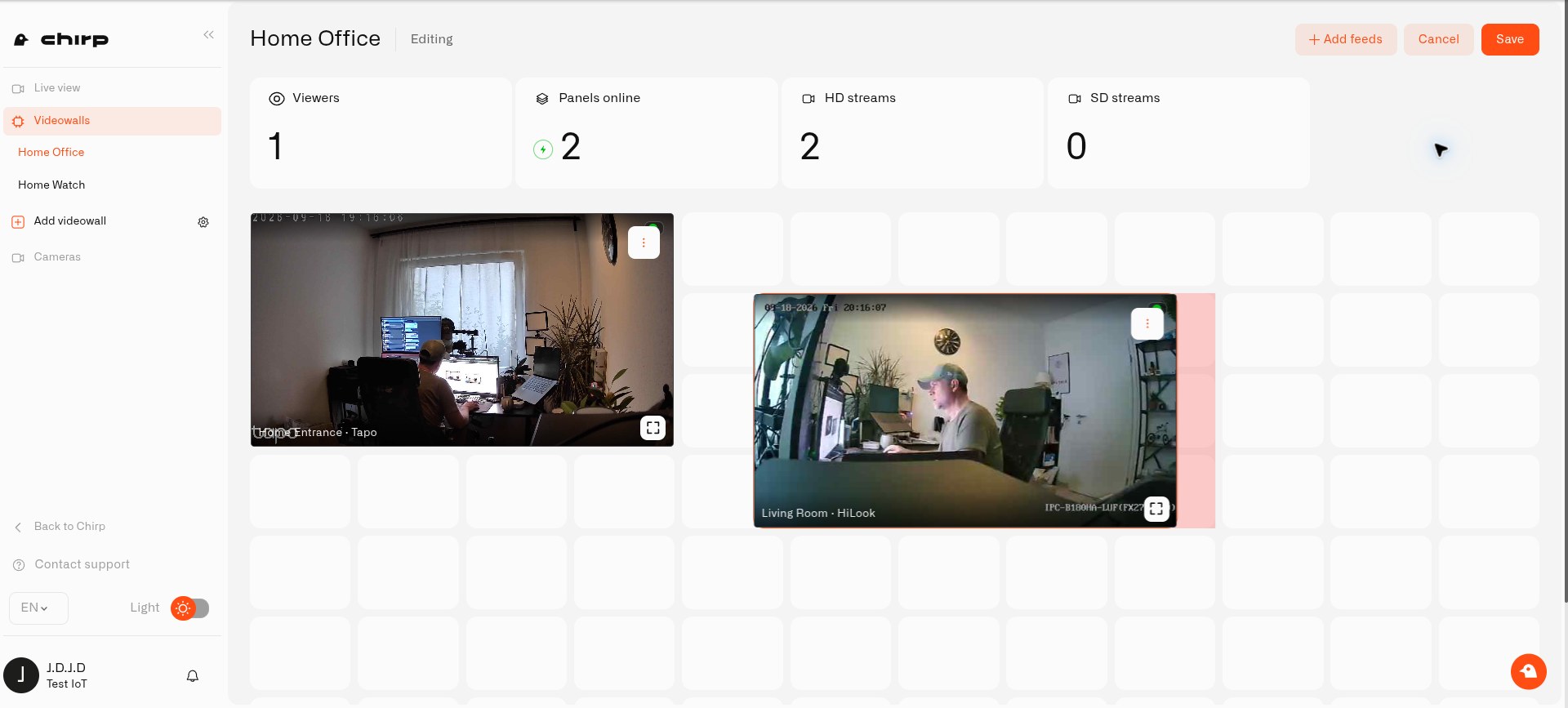
6. Move each panel by dragging it. Drag a corner to change its size—for example, make the driveway picture larger than the side-door picture.
7. Select **Save** when you are happy with the arrangement.
You can return to **Edit** whenever you want to change the wall. Remove an unwanted panel with its delete control, or use **Add feeds** for another camera. Select **Cancel** if you want to abandon changes instead of saving them.
Drag and resize camera panels in Edit mode to create the view you want to keep.
## How do I check the whole house at a glance?
Choose the wall in the Lens sidebar to open your saved camera arrangement. **Preview** gives you refreshed still pictures. Switch a panel to **Live** for continuous video and use **Toggle fullscreen** when you want a closer look.
The header cards show **Viewers**, **Panels online** ("All N panels online" or "N panels need attention"), **HD streams**, and **SD streams**, which help you see which views are available. While you edit, the header shows **Editing** with **Save** and **Cancel**; the wall's more menu offers **Edit** and **Delete videowall**, and deleting asks "Are you sure you want to delete this videowall?" with **Yes, delete**. A panel whose camera has been removed from Chirp reads **Camera unavailable**. When a panel reports its camera as offline, the preview replaces the earlier snapshot with **Camera is offline**. If you see **No preview available**, check the camera's state before assuming it is disconnected; see [Watching Live Video](/lens/watching-live-video.md#why-is-my-camera-picture-missing). The **HD streams** and **SD streams** counters reflect viewing modes; they do not increase the resolution supplied by the camera.
To listen or speak through a supported camera, open that camera's individual view. Use the wall to watch several views together and return supported cameras to their home positions. See [Watching Live Video](/lens/watching-live-video.md) for camera controls.
## How do I send cameras back to their usual view?
A motorized **PTZ camera** supports pan, tilt, and zoom. Its **presets** remember useful viewing positions, such as the doorway or a wider view of the room. Mark one as the default to tell Lens where that camera should normally look.
Suppose you turn several cameras to follow movement around the garden or check different parts of a property. Afterwards, they may no longer cover the doors or paths you usually watch. Instead of opening each camera and moving it back by hand, select **Return All to Home** on the videowall. The supported cameras on that wall return to their own home positions together. This is particularly useful when you have cameras around a large house or across several properties.
To choose the usual view for a camera:
1. Open the camera from the **Cameras** list in Lens.
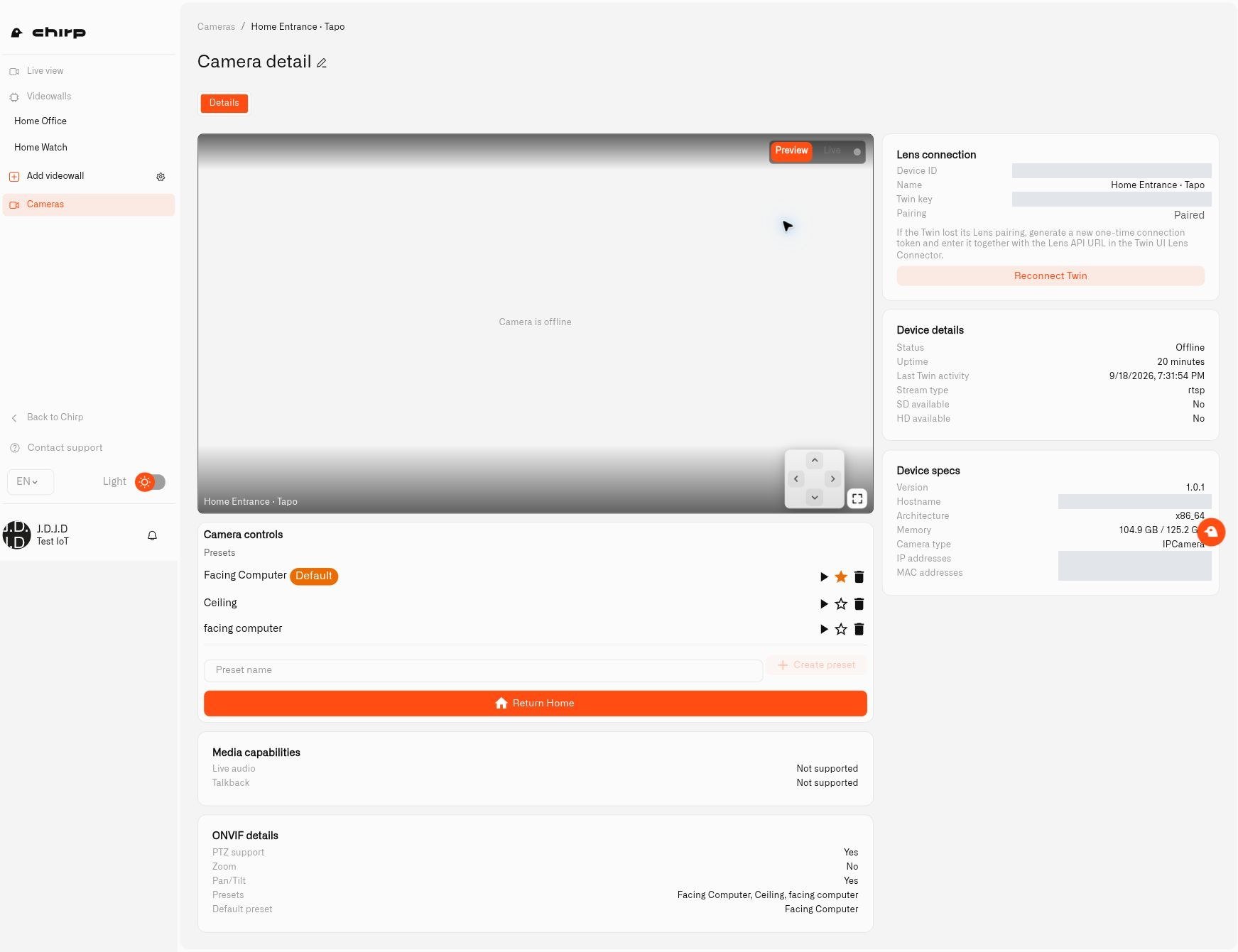
2. Find **Camera controls → Presets**. Use **Go to** beside a saved position to check its view.
3. Choose **Set as default**, the star beside the position you want. A **Default** label identifies your selection.
4. Set the preferred position on your other PTZ cameras as needed.
5. Return to the saved wall, leave Edit mode, and select **Return All to Home**.
The default preset tells Lens where this camera should normally look.
A camera might have a preset aimed towards the ceiling and another aimed at the desk or entrance. Choosing a default tells Lens which one you want to return to. If there are several presets and none is selected, Lens leaves that camera in place and reports **multiple presets found, set a default**. Set its default, then try again. When a supported PTZ camera has only one available preset, Lens can use that preset automatically.
Read the result notifications and check the pictures: they say how many cameras returned to their home position, how many were skipped (no PTZ support, no home preset set, or several presets with no default), and how many failed. "No PTZ cameras with a home preset found" means nothing on the wall could move, and "Failed to return home" means the request itself failed. Fixed cameras cannot turn, cameras without a usable preset are skipped, and an offline camera cannot respond. Only the cameras included in the open wall are targeted. If movement controls are unavailable on a compatible camera, check its ONVIF setup in [Connecting a Camera](/lens/connecting-a-camera.md).
## Where do my videowalls live?
Choose **Cameras** in the main menu and the sidebar changes to Lens. **Live view** comes first and **Videowalls** second, with each saved wall listed beneath it; **Back to Chirp** returns to the main menu. After the walls come **Add videowall** (with a gear icon for managing folders), then **Recordings** and **Cameras**, and **Storage** is pinned near the bottom. A wall whose cameras are all offline shows **Camera is offline** on each panel, and the header counters (viewers, panels online, HD and SD streams) show how many need attention.
## How do I keep useful views together?
You might create one wall for outside cameras and another for indoor areas. Folders, created through the gear next to **Add videowall** in the Lens sidebar, help organize those views. The **Manage videowalls** dialog ("Organize your videowalls into folders") has **Create folder** with a name field ("Enter folder name"; a name is required). Select a folder when you create a wall. Only an empty folder can be deleted; otherwise you see "Cannot delete a folder that contains videowalls".
If you no longer need a layout, choose **Delete videowall** in its more menu. The wall is removed, but its cameras remain in Lens. Deleting a wall or removing a panel does not remove the camera's Twin.
A wall helps you check what is happening now. To let motion at a particular doorway start an automation, continue with [Motion Zones](/lens/motion-zones.md) and [Camera Rules and Alerts](/lens/camera-rules-and-alerts.md).